















In this guide, we will explore how to sort text messages by date on Android devices. With the increasing reliance on smartphones for communication, text messaging has become an integral part of our daily lives. However, it can become challenging to locate specific messages or follow conversations chronologically. Fortunately, Android devices offer a convenient feature that allows you to sort your text messages by date.
By sorting your text messages by date, you can easily identify the most recent conversations or find older messages without scrolling through a cluttered message thread. Whether you want to quickly locate an important conversation, review past messages, or simply keep your messages organized, this feature can greatly enhance your messaging experience.


In the following sections, we will outline step-by-step instructions on how to sort text messages by date on your Android device, allowing you to streamline your messaging workflow and stay on top of your conversations with ease.
Is it possible to sort messages by date?
Yes, it is possible to sort messages by date on Android devices. Most messaging apps on Android offer the option to sort messages based on the date and time they were received or sent. This feature allows users to organize their message threads in chronological order, making it easier to find specific messages or follow conversations.

To sort messages by date, open your messaging app and navigate to the conversation list or inbox. Look for an option to sort or filter messages. It might be represented by an icon, such as a funnel or three horizontal lines. Tap on that icon to access the sorting options. From there, you should see the choice to sort messages by date or time.
How to Sort Messages by Date on Android
To take advantage of this functionality, you must first ensure that you are running the most recent version of the Messaging program. If you don’t already have the most current version, download it from the Google Play Store and follow the on-screen instructions on How to Sort Text Messages by Date on Android.
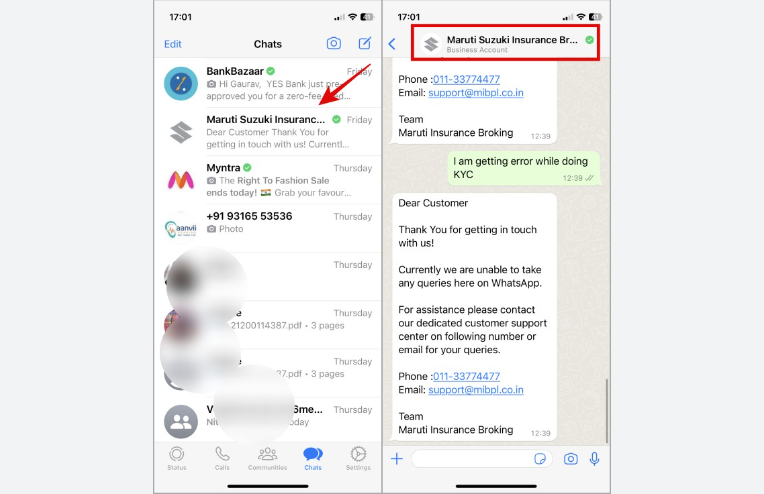
Step-01: Open your Messages app on your Android Smartphone.
Step-02: Now, tap on the “Three Dot” menu located on the search bar. After tapping on it, you will get a list from where you have to click on the “Settings” Option.
Step-03: Now search the “Organization Messages” from the provided list, and then you have to tap on it.
Step-04: After clicking on the “Messages Organization” Option, you’ll get a couple of options from the page. From here, you have to turn on the Sort messages by category option.
All of the inbox messages will now be organized into several categories, notably date, for easier retrieval. You can easily discover the messages you’re searching for with just a single click.
Samsung messages vs Google messages: which is better?
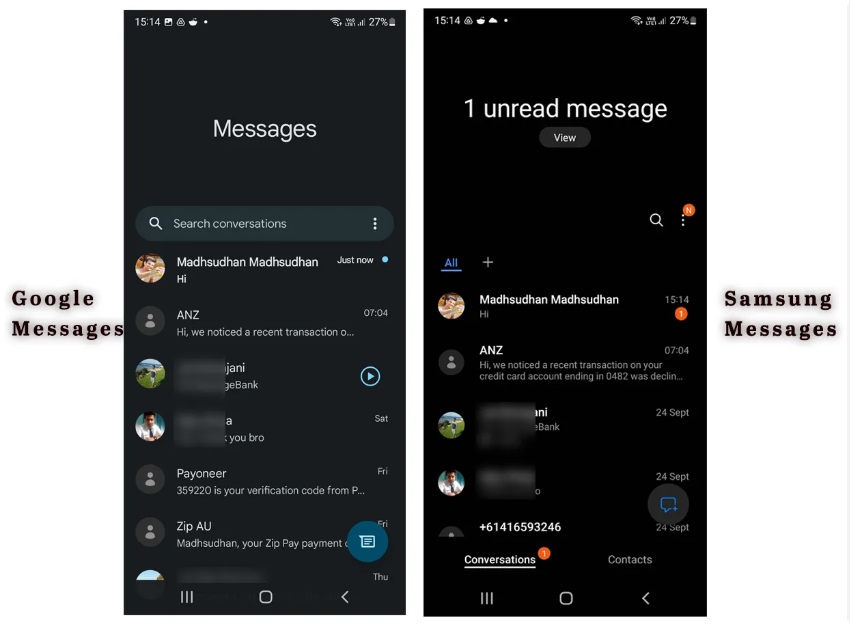
Member at the top of the hierarchy. I really like the Samsung messaging app, primarily because of the user interface (UI). The accessibility of RCS through default in Google messages, regardless of where you reside or which operator you use, is the primary benefit of using Google messages. RCS can be used with Samsung messaging, but only if a particular carrier supports the feature in question.
How do you arrange messages on Samsung Messages?

Activate the Samsung Messages application and compose a text message, but refrain from sending it. To show other possibilities, click on the arrow towards the left of the text field, then click on the plus sign to the right. Choose “Schedule message” from the drop-down menu that appears to schedule a message. To send the text message, choose the time as well as the date that you want it to be sent, then hit “Done.”
Final Thoughts
In conclusion, sorting text messages by date on Android devices is a valuable feature that enhances organization and simplifies message management. By following the steps outlined in this guide, users can easily access recent conversations, locate specific messages, and maintain a chronological order within their message threads.
The ability to sort messages by date ensures a streamlined messaging experience. With this feature, finding important information, reviewing past conversations, and staying organized become effortless. Take advantage of this functionality on your Android device to optimize your messaging workflow and stay in control of your communication.
Read also: click here